
Getting started
How do I make my first barcode?
Answer
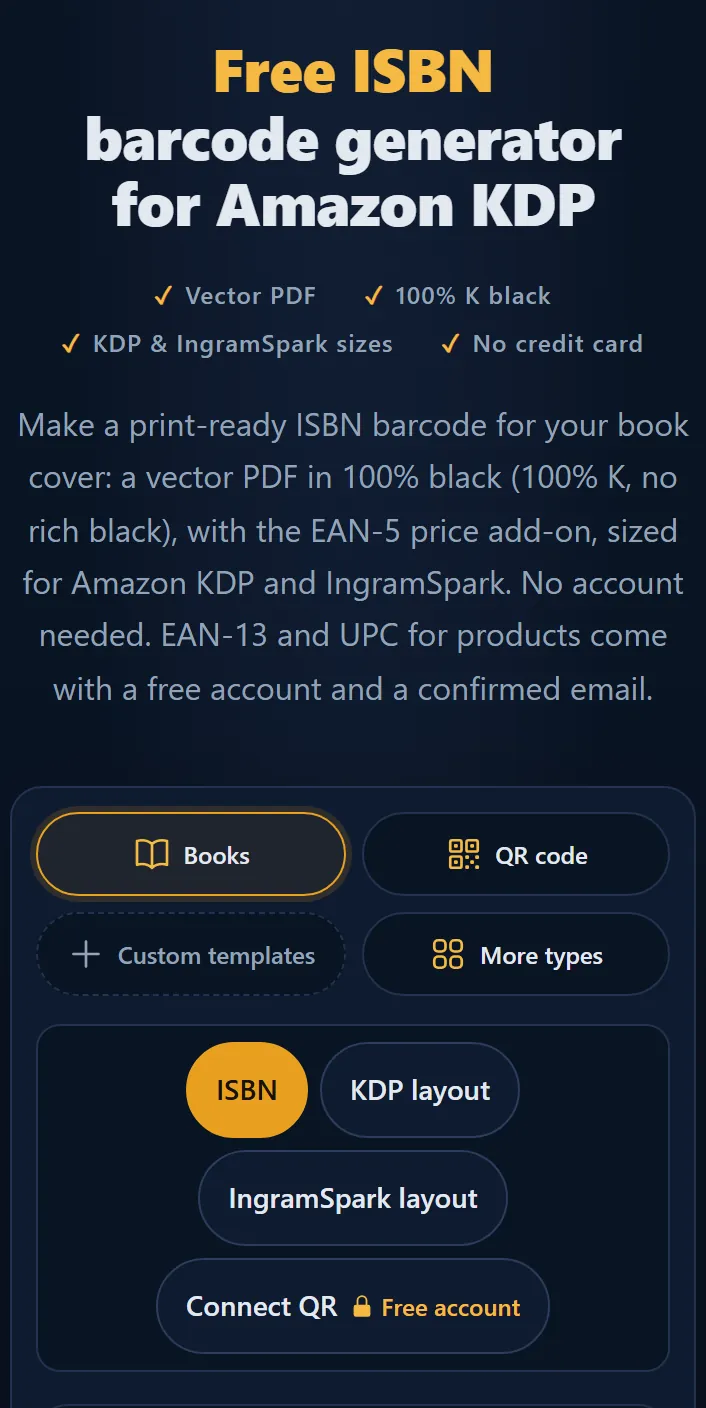
To make your first barcode on Barcode Rocket, open the home page, click Books, then ISBN, and type your 13-digit ISBN. When PRINT CHECK says Ready, click Download vector PDF. You need no account for a book barcode.
Steps
- Open the studio on the home page.
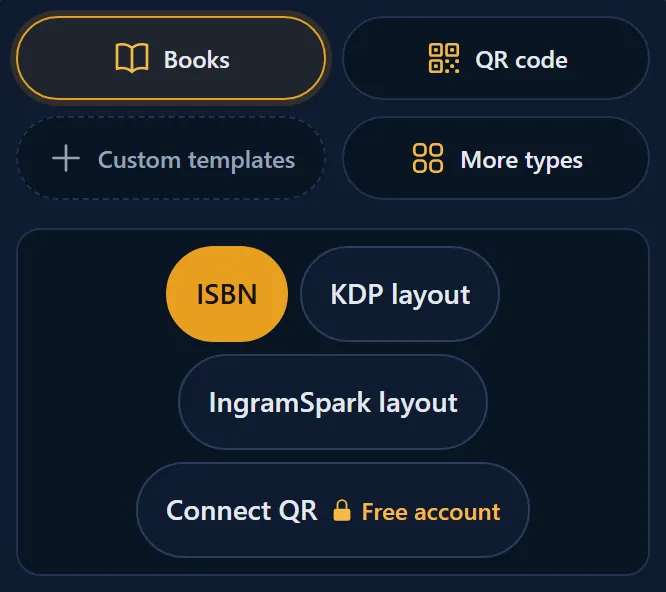
- Click Books, then ISBN.
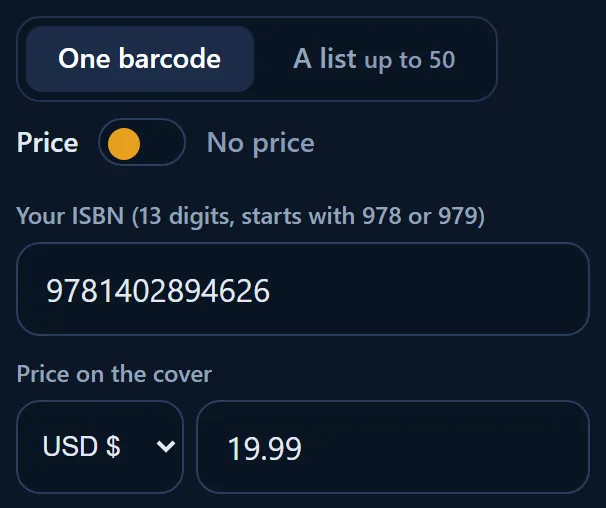
- Leave the switch on Price.
- Type your ISBN. Hyphens and spaces are fine.
- Type the price, for example 19.99. Or leave the price empty: the barcode then gets 90000, the code for "no price".
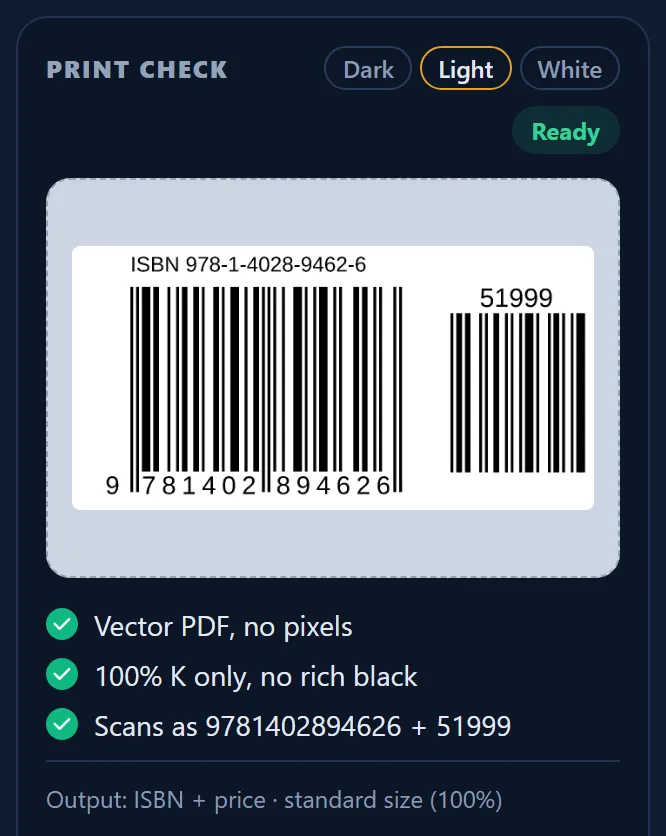
- Wait for the picture. PRINT CHECK shows three green checks and the badge Ready.
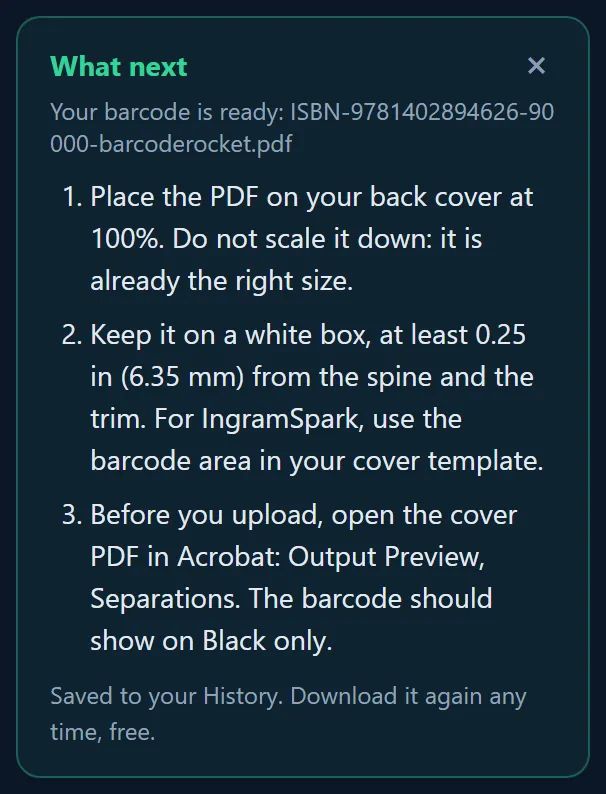
- Click Download vector PDF. A What next box opens with three short steps for your cover.
No ISBN at hand?
Before you type anything, the picture shows an example with the badge Example. It cannot be downloaded. To try the whole flow first, click Try with an example ISBN: it types a sample number for you.
Common problems
- The Download button stays gray. Something is still missing or wrong. See Why is the Download button gray or red?
- The ISBN is not accepted. See Why is my ISBN not accepted?
- You print with Amazon KDP or IngramSpark. Pick KDP layout or IngramSpark layout instead of ISBN. See How do I create a KDP barcode?
Why it matters
The number is checked while you type, so a typo cannot reach your printer. The Scans as line in PRINT CHECK shows the number a shop scanner will read: compare it with the ISBN your agency gave you before anything is printed.