
Book barcodes
How do I create a KDP barcode?
Answer
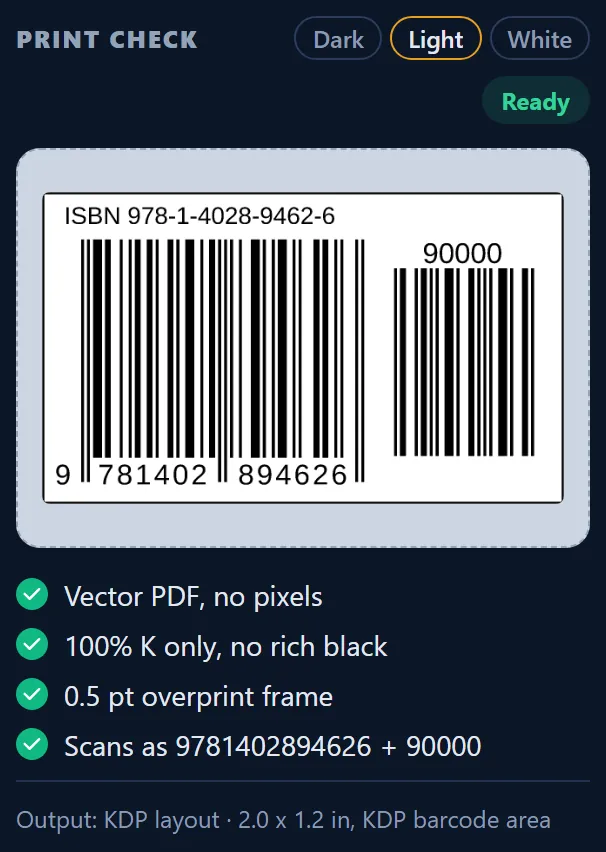
Barcode Rocket makes a KDP barcode as a 2.0 x 1.2 in (50.8 x 30.5 mm) vector PDF, made for the barcode area of an Amazon KDP paperback cover. It has your ISBN bars, the price add-on (90000 when you give no price), a white box and a thin 0.5 pt black frame that overprints. It is free and needs no account.
Steps
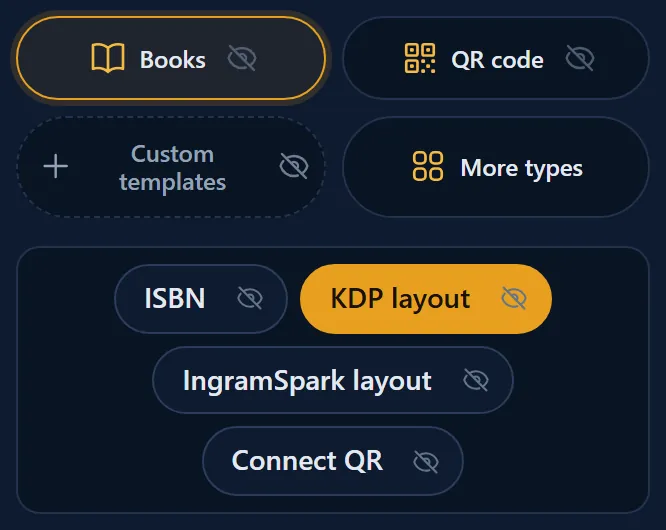
- Click Books, then KDP layout.
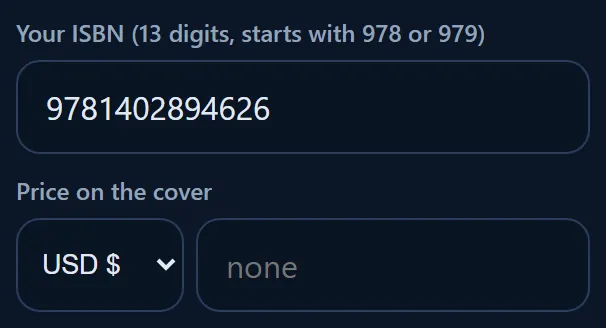
- Type your ISBN.
- In Price on the cover, choose the currency and type the price, or leave it empty for 90000. KDP accepts both.
- Check PRINT CHECK. On the KDP layout it shows four green lines, one of them 0.5 pt overprint frame.
- Click Download vector PDF.

What is in the file
- The ISBN as bars and the ISBN as text on top.
- The price add-on. It is always there: 90000 when you give no price.
- The price as text in the top right corner, when you give one.
- A white box with a 0.5 pt black frame that overprints.
- The file name ends in KDP, for example ISBN-9781402894626-90000-KDP-barcoderocket.pdf.
Requirements and common mistakes
- Place the file at 100% in the barcode area of your KDP cover. Do not stretch it.
- US prices from 100.00 to 499.99 work too: 12999 means $129.99.
- Use one ISBN per format. Your paperback and your hardcover each need their own barcode.
Why make your own KDP barcode?
If you do not provide a barcode, KDP places one on your back cover at no extra cost (KDP Help: Barcodes). Your own file lets you decide what is in it, for example a price in the add-on, and the same cover can go to other printers. The thin frame overprints, so it never leaves a white gap on a colored cover.