
Print and PDFs
Where do I place the barcode on my cover?
Answer
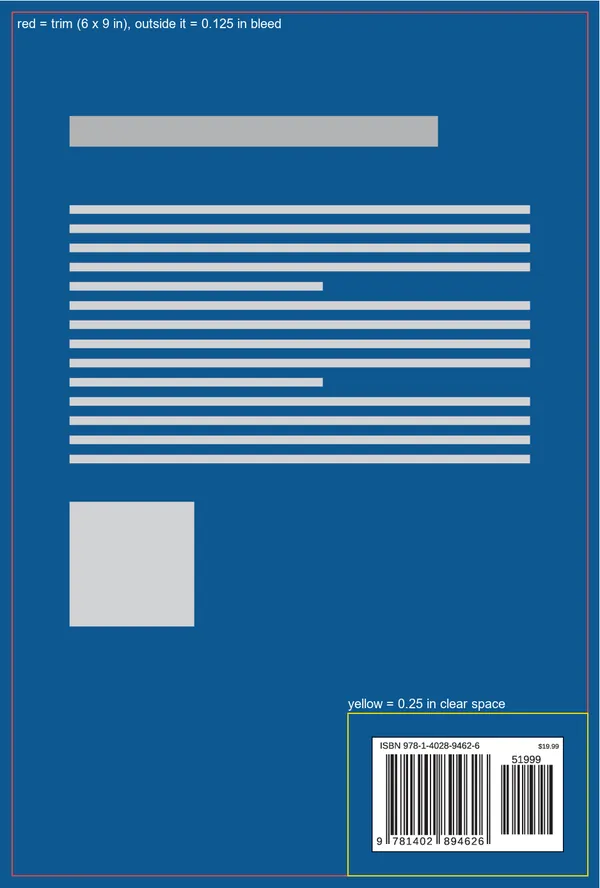
Place the Barcode Rocket PDF at 100% size on the back cover, usually at the bottom right, on a white box. Keep it at least 0.25 in (6.35 mm) inside the trim and away from the spine, and never in the bleed. Do not stretch it or scale it down: the file is already the right size.
Steps
- Send the PDF itself to your designer, or place it yourself. Not a screenshot or a photo of it.
- Place it at 100% on the back cover, at the bottom, usually lower right.
- Keep it at least 0.25 in (6.35 mm) from the spine and the trim, and out of the bleed. For IngramSpark, use the barcode area in its template.
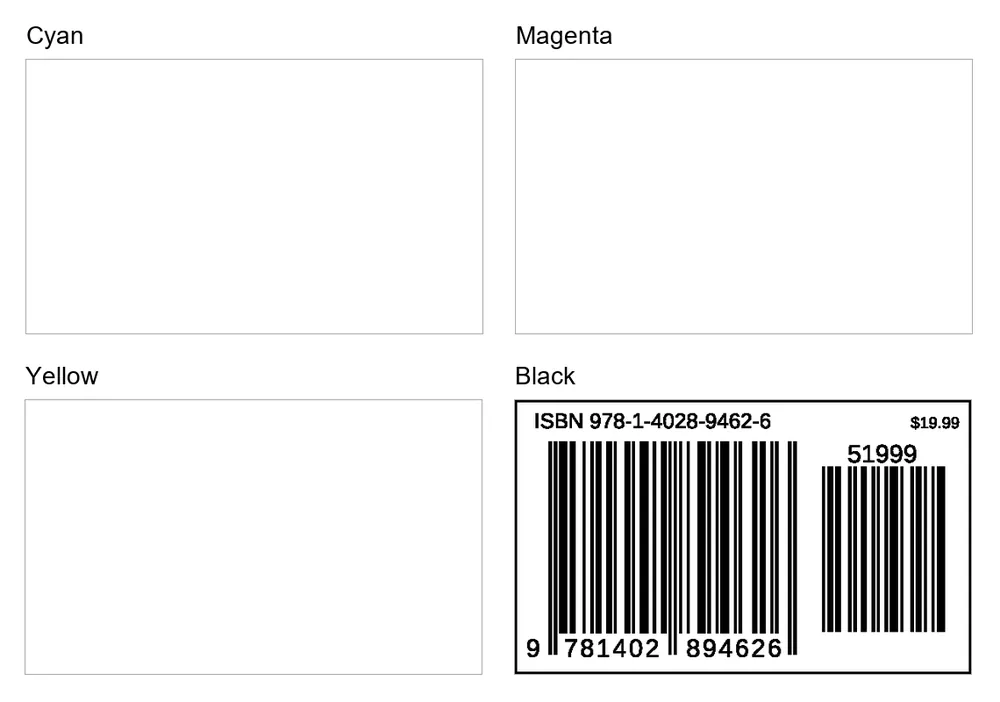
- Check the separations of the finished cover. See How do I check a print-ready PDF?
- Scan a printed proof with a phone app, and compare the number.
The What next box
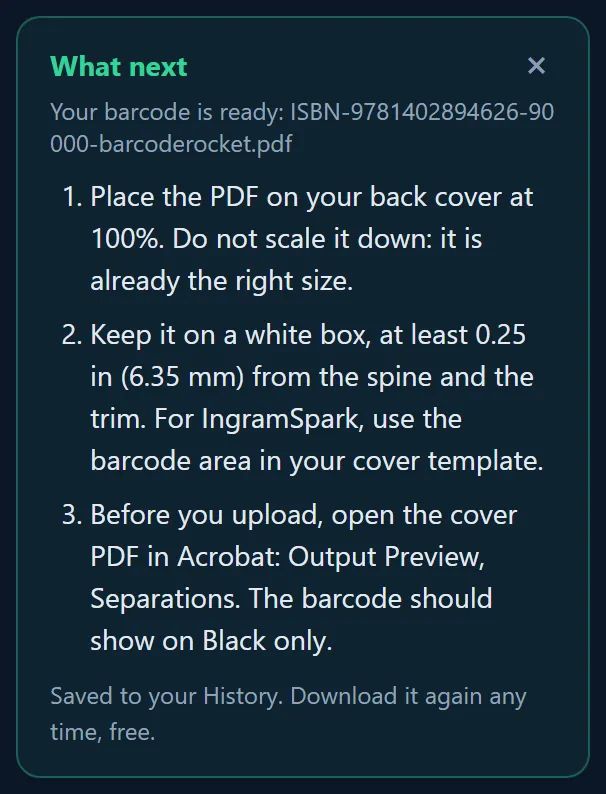
After each download, a What next box opens with the same steps for your kind of barcode. For a book cover it says: place the PDF at 100%, keep it on a white box at least 0.25 in from the spine and the trim, and check the separations in Acrobat.
Common mistakes
- Scaled down to fit a design. The file is already the right size, and a smaller barcode may not scan.
- Placed on a dark color. A white barcode on black does not scan. Put the black bars on a white box.
- Recolored when the cover is exported, so the black becomes a mix of four inks.
- Inside the bleed, where it can be cut off.
Why it matters
Most barcode problems happen after the download: the file is scaled, recolored when the cover is exported, or placed on a dark color. These steps catch that before the printer does.