
Print and PDFs
How do I check a print-ready PDF?
Answer
To check that the barcode on your finished cover is print-ready, open the cover PDF in Adobe Acrobat and go to Print Production, Output Preview, then Separations. Turn off every ink except Black: the barcode must be complete on the Black plate and gone on Cyan, Magenta and Yellow. Then scan a printed proof with your phone.
Steps
- Open the finished cover PDF (not the barcode file alone) in Adobe Acrobat.
- Open Print Production, then Output Preview.
- Under Preview, choose Separations.
- Turn off every ink except Black. The barcode must still be there, complete and sharp.
- Now turn Black off and the other inks on. The barcode must be gone.
- Scan a printed proof with a phone app and compare the number with your ISBN.
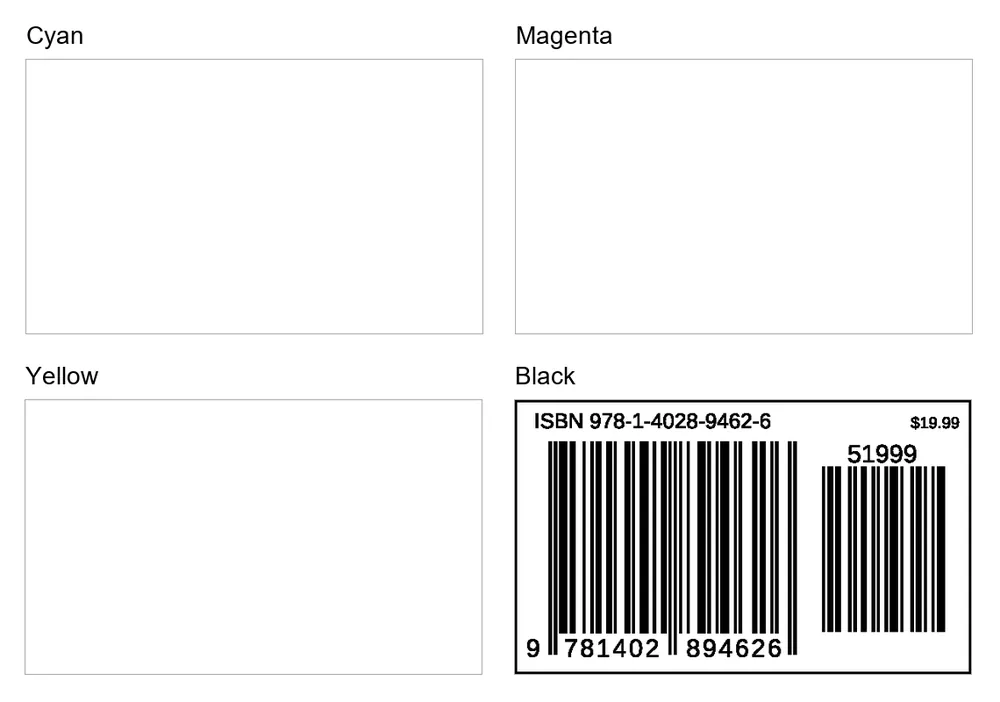
What a problem looks like
- The barcode shows on Cyan, Magenta or Yellow too. The black was turned into a mix of inks (rich black) when the cover was exported. Place the original PDF again and export without converting colors.
- The bars look soft or stepped when you zoom in. The barcode was placed as a picture, not as the vector PDF. See the guide on vector files below.
- The barcode is smaller than you placed it. Something scaled the cover or the file. It must stay at 100%.
Why it matters
Printers split your cover into one plate per ink. If the barcode is on four plates, the four layers never land exactly on top of each other, and the bars get color fringes that scanners misread. One plate means sharp bars.