
Your account
How do I change my password, download my data or delete my account?
Answer
Your Barcode Rocket account page opens from the gear at the top of the dashboard. There you can change your password, see your allowance and role, disconnect apps such as Claude, sign out of all devices, download a copy of your data and delete your account.
What is on the account page
- Profile: your email, your plan, and the date you joined.
- Your allowance: new barcodes today, new barcodes in lists in the last 7 days, and the barcode types your account has.
- Your role: change the "I am…" answer.
- Connected apps (only once you have connected one): apps such as Claude that can make barcodes on your account. Disconnecting one stops it at once.
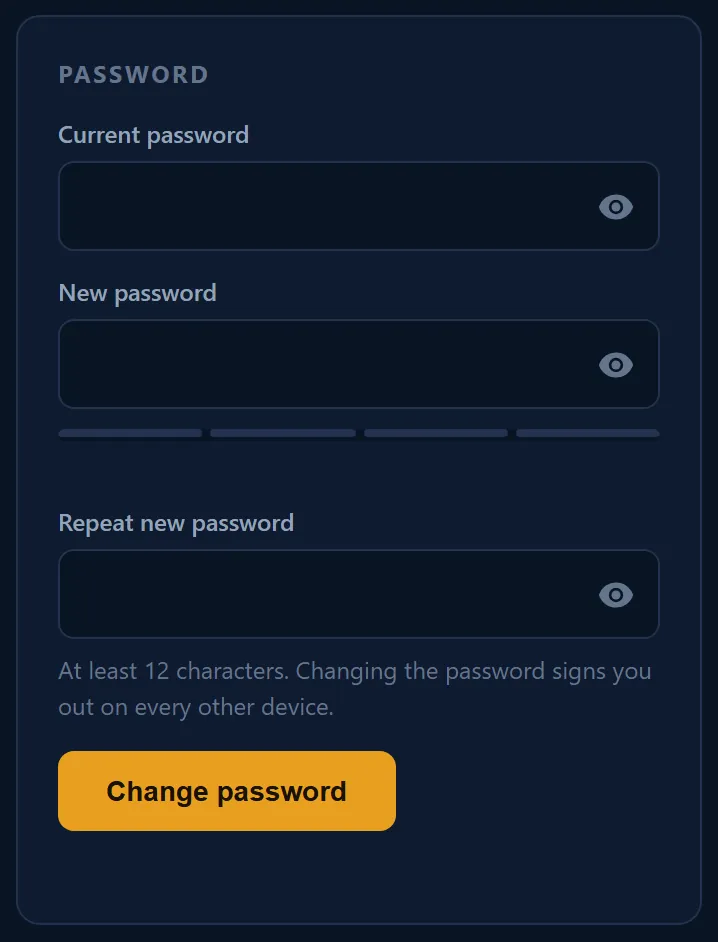
- Password: change it. At least 12 characters.
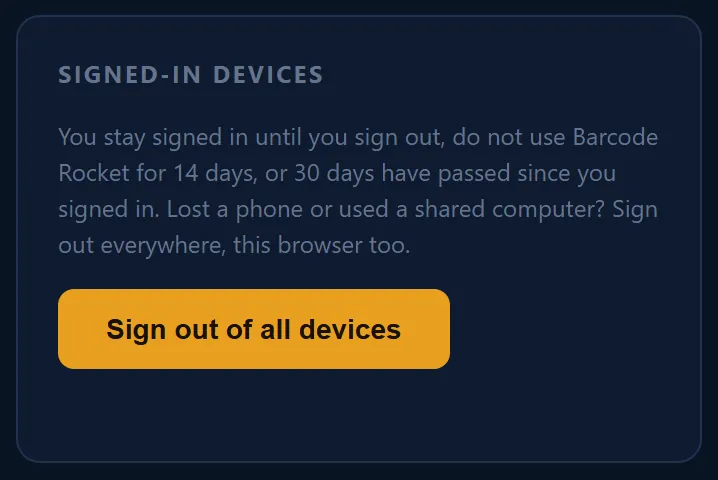
- Signed-in devices: Sign out of all devices.
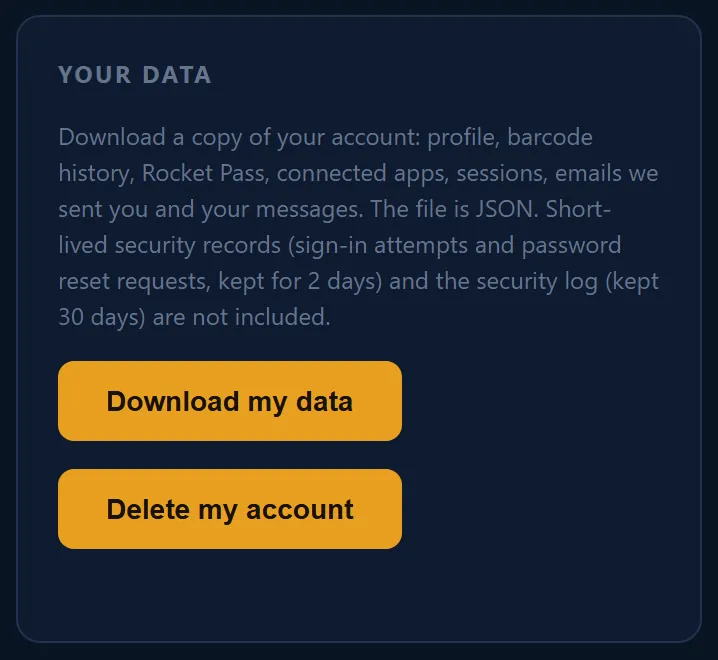
- Your data: Download my data and Delete my account.
Change your password
- Open the account page (the gear on the dashboard).
- Under Password, type your current password and the new one (at least 12 characters).
- Click Change password. Every other device is signed out.

Forgot your password? Use Forgot password? on the sign-in page. We send you a reset link.
Signed-in devices
You stay signed in until you sign out, do not use the site for 14 days, or 30 days pass. Click Sign out of all devices if you lost a phone or used a shared computer.
Download or delete your data
- Download my data gives you a copy of your account as a JSON file: profile, barcode history, Rocket Pass, connected apps, sessions, the emails we sent you and your messages.
- Delete my account deletes it at once, after you type your password. It cannot be undone. Files you already downloaded stay on your computer.
An account with an API key or a custom template is closed through us: send a privacy request.
Why it matters
Your account is yours: you can see, take and delete what we keep. Details in the Privacy Policy.