
QR codes
How do I put a text under my QR code?
Answer
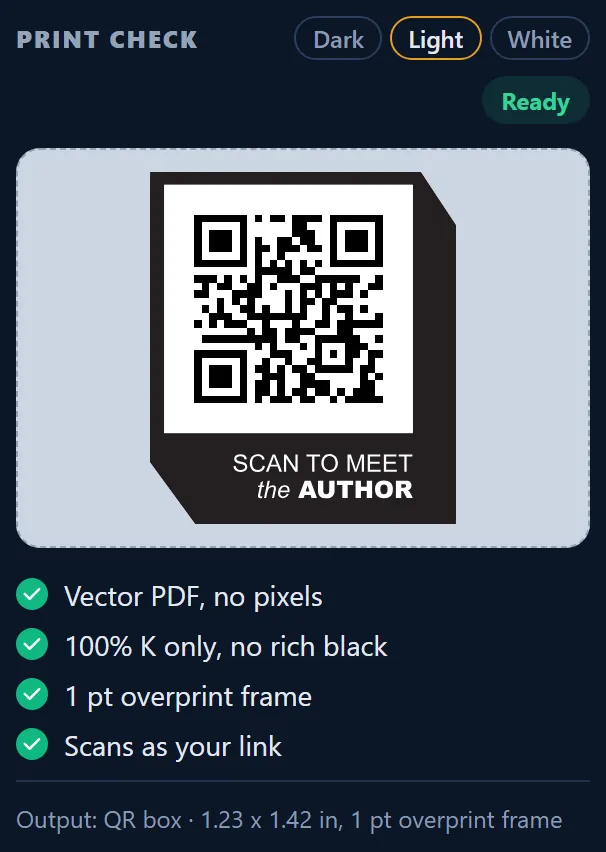
The QR box from Barcode Rocket is a small black label, 1.23 x 1.42 in, with a QR code and a short line under it, such as SCAN TO MEET the AUTHOR. You pick the text from a ready list, paste your link and download one vector PDF. It needs a free account with a confirmed email.
Steps
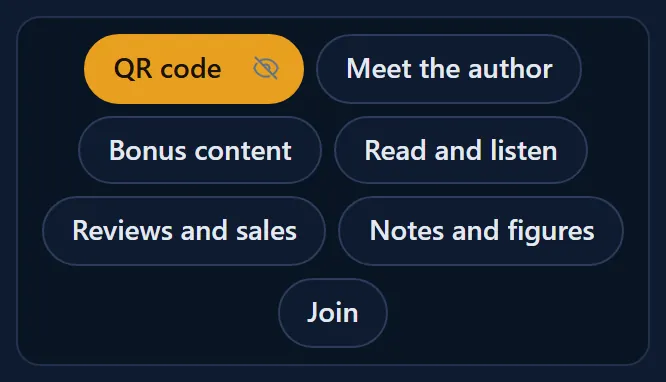
- Click QR code. Under it you see the kinds of text: Meet the author, Bonus content, Read and listen, Reviews and sales, Notes and figures, Join.
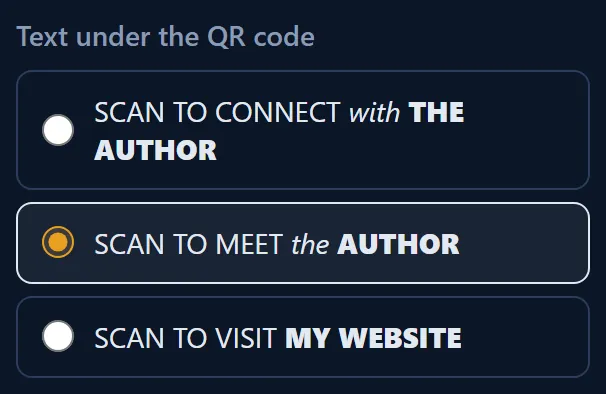
- Click the kind you want. A list of texts opens under Text under the QR code.
- Pick one text. The picture shows it at once.
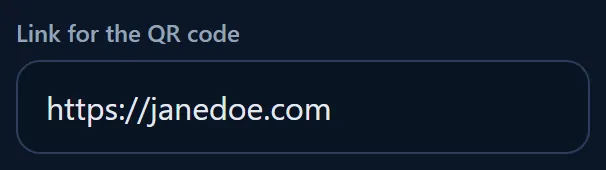
- Type or paste your link.
- Click Download vector PDF.
Good to know
- You can try every text on the example without an account. Only the download needs one.
- The texts are ready-made and drawn as shapes, so they print sharp and every letter is right. That is why you cannot type your own text.
- Nothing fits? See Can I ask for a new text under the QR code?
What is in the file
- The label, 1.23 x 1.42 in, in 100% K black, with a 1 pt overprint frame.
- The QR code with its quiet zone.
- A file name such as QR-box-connect-with-the-author-yourbook-com-barcoderocket.pdf.
Why it matters
"Scan me" alone tells a reader nothing. A clear text (read the first chapter, leave a review, get the workbook) tells them why to scan, and more people do.