
QR codes
How do I make a QR code for my book?
Answer
To make a QR code on Barcode Rocket, click QR code, then the QR code button, paste your link and click Download vector PDF. The file is a vector QR code in pure black (100% K) with the white margin a phone needs around it. It is free and needs no account.
Steps
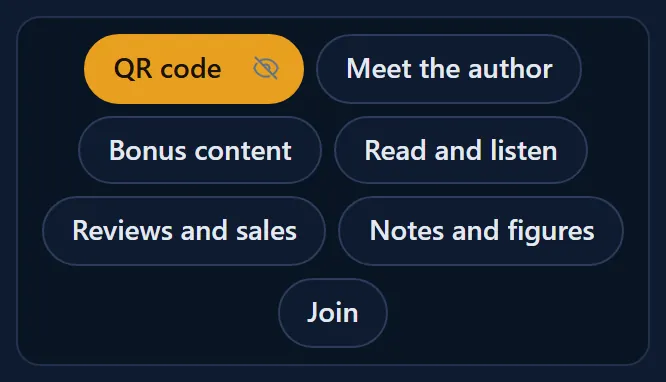
- Click QR code in the groups at the top.
- Click the QR code button (the first one under the group).
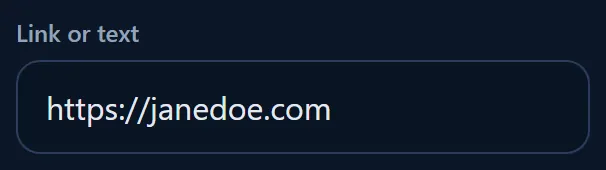
- Type or paste your link, for example https://yourbook.com.
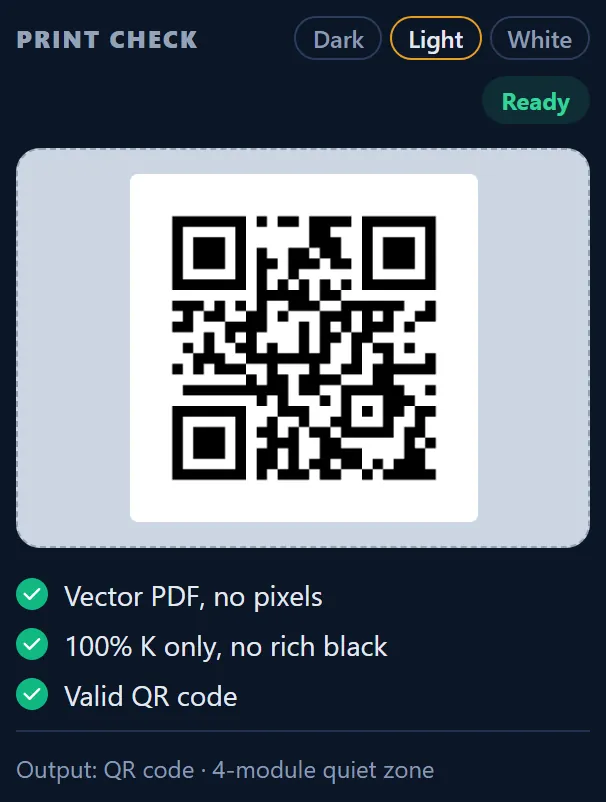
- When PRINT CHECK says Ready and shows Valid QR code, click Download vector PDF.
- Scan the printed proof with your phone before you print the whole run.
Requirements and common mistakes
- Test the link with your phone before you print. A printed QR code cannot be changed later.
- Use a link you control, such as your own website, so you can change where it leads without reprinting.
- Place the code at 100% on a light background. Do not make it so small that a phone cannot read it.
- If the site says the link looks broken, see Why does the site say my QR link looks wrong?
What is in the file
- The QR code with a quiet zone of 4-modules (the small squares the code is made of) on each side. A phone needs that white margin.
- Medium error correction (level M), so a code with a small scratch can still be read.
- A file name made from your link, for example QR-code-yourbook-com-barcoderocket.pdf.
Want a text under the code?
A label that says why to scan (for example SCAN TO MEET the AUTHOR) works better than a bare code. That is the QR box, with a free account. See How do I put a text under my QR code?