
Publishers and API
How do I make EAN, UPC and carton barcodes?
Answer
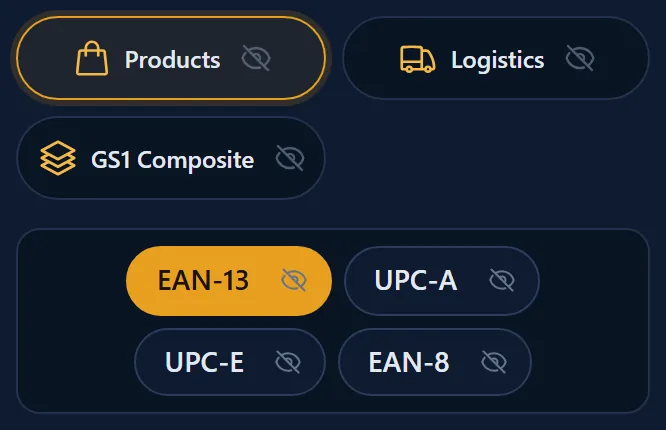
With a free Barcode Rocket account and a confirmed email, More barcode types makes product and carton barcodes. That is EAN-13, UPC-A, UPC-E and EAN-8 for retail products, GS1-128 for shipping cartons, and GS1 Composite. You need your own number from GS1; Barcode Rocket does not sell numbers.
Steps
- Click More barcode types. The groups Products, Logistics and GS1 Composite open. Do not see More barcode types? Your "I am…" answer hid these types: click Show all above the groups.
- Click a group, then a type, for example EAN-13.
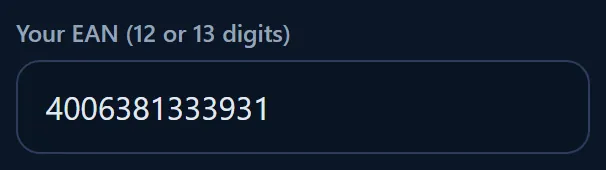
- Type your number. The label above the field says how many digits it takes.
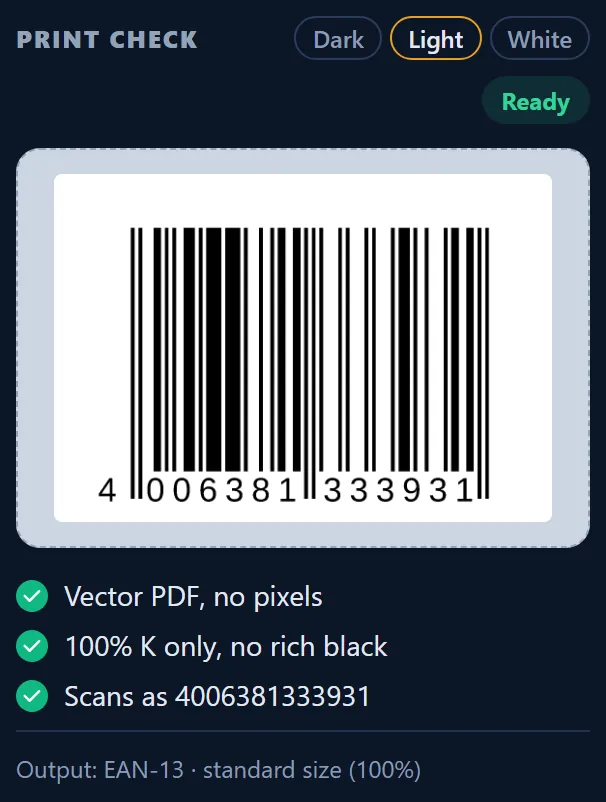
- When PRINT CHECK says Ready, click Download vector PDF.
Which type takes which number
| Type | What you type | Used for |
|---|---|---|
| EAN-13 | 12 or 13 digits | Retail products |
| UPC-A | 11 or 12 digits | Retail products, mainly in North America |
| UPC-E | 8 digits, or a 12-digit UPC that can be shortened | Small products |
| EAN-8 | 7 or 8 digits | Small products |
| GS1-128 | your GTIN, 13 or 14 digits | Shipping cartons |
| GS1 Composite | the number plus extra data, such as (17)261231 | A product barcode with a small extra code |
For EAN-13, UPC-A and EAN-8, leave out the last digit and the check digit is added for you, or type it and it is checked.
Common mistakes
- Books do not use UPC. A book barcode is made from your ISBN. See the guide on UPC for books below.
- UPC-E only works for numbers that can be shortened. If yours cannot, use UPC-A.