
Getting started
How do I create a free account?
Answer
To create a free Barcode Rocket account, click Create free account at the top of any page, type your email and a password of at least 12 characters, and click Create free account. Then open the email we send you and click the confirmation link. Nothing to pay and no card.
Steps
- Click Create free account at the top of any page.
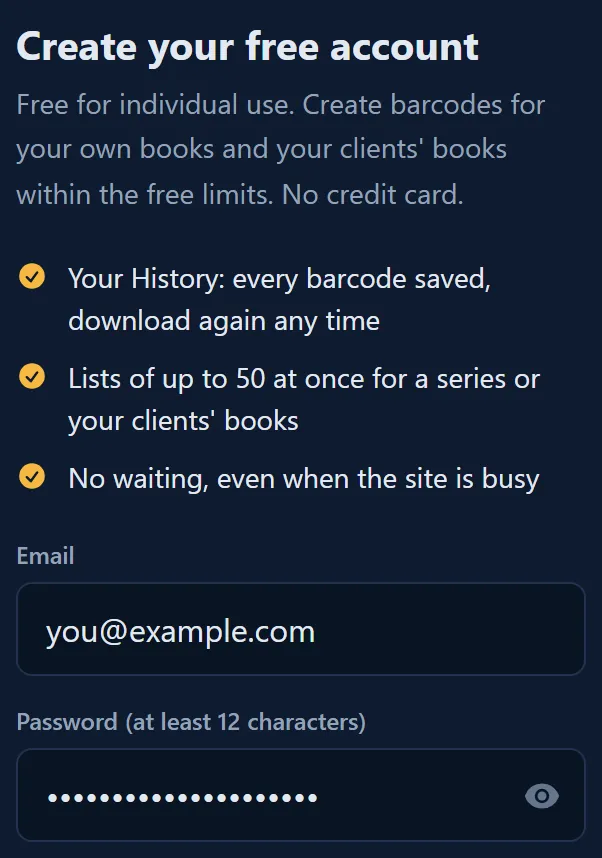
- Type your email and a password of at least 12 characters.
- Click Create free account. Your dashboard opens.
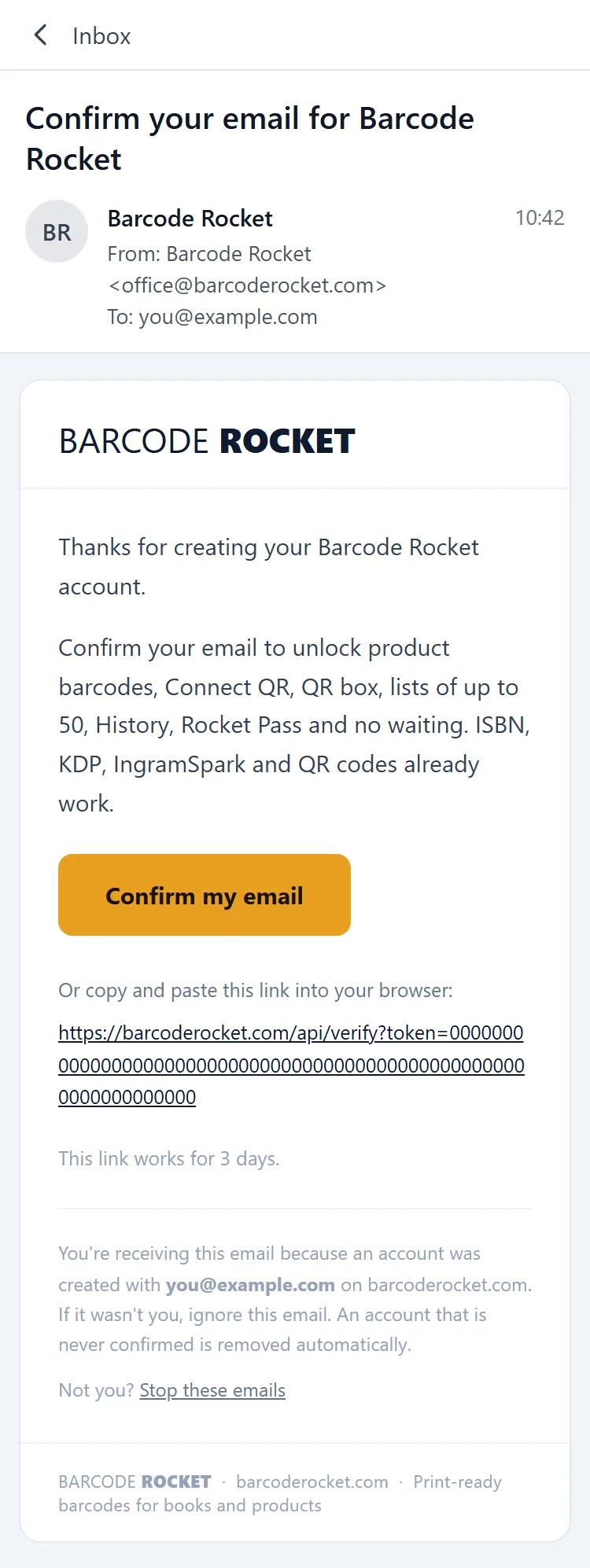
- Open the email from Barcode Rocket and click the confirmation link. Everything unlocks.
The bar at the top of your dashboard
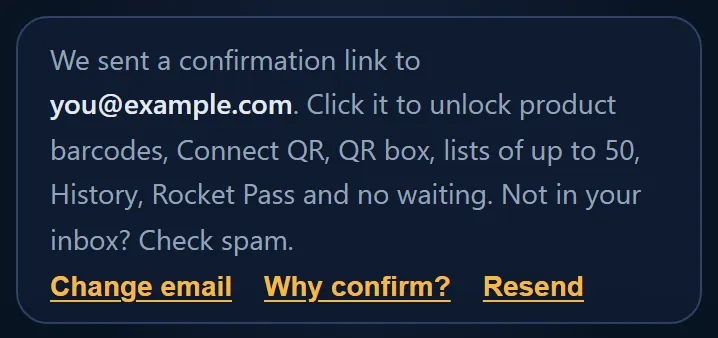
Until you confirm, a bar at the top of the dashboard tells you what to do. It has three buttons:
- Send confirmation email (it says Resend once a link was sent): sends the link again.
- Change email: if you made a typo in your address, fix it here. You keep the same account.
- Why confirm?: a short explanation.
Until you confirm, your account works like a visitor: the free types and up to 20 downloads a day from your network. Your Inbox already works. Barcodes you make before you confirm are kept and show in History once you confirm. Confirm within 7 days of the latest confirmation email, or the account and those barcodes are deleted. If the email does not come, see Why has my confirmation email not arrived?
The first question: "I am…"
Right after you sign up, the site asks what you are: Author / self-publisher, Book designer, Graphic designer, Publisher / publishing house, Design agency / studio or Other. You can also click Skip.
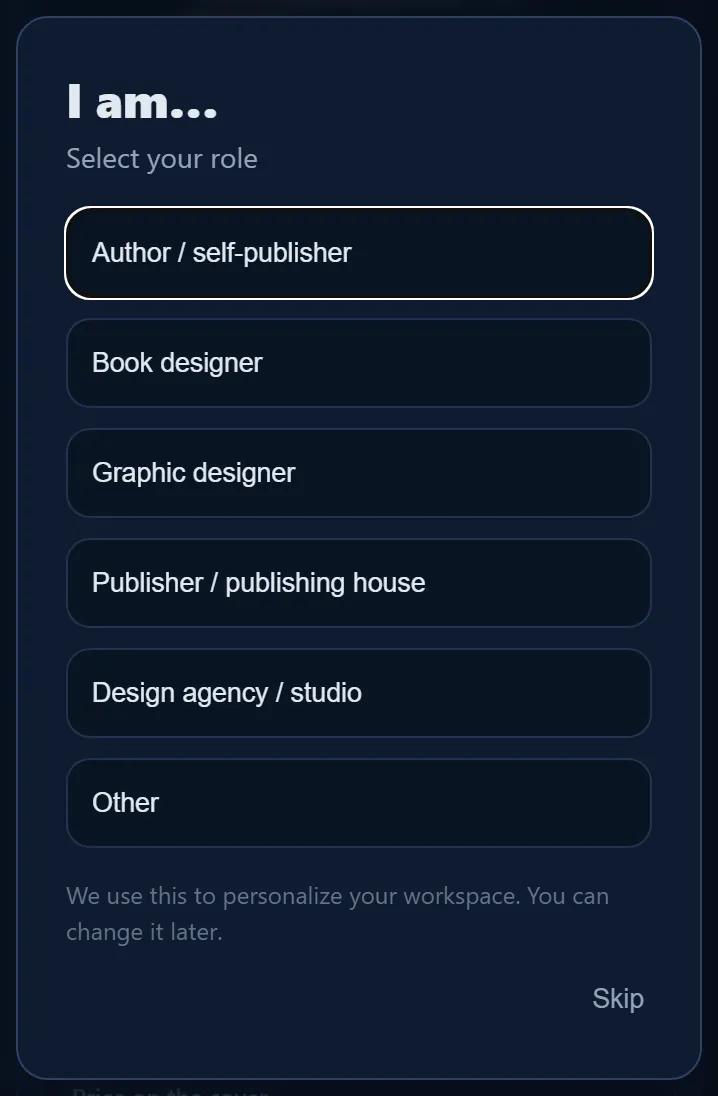
Your answer hides the barcode types you probably do not need. If you answered Author / self-publisher, Book designer, Publisher / publishing house or clicked Skip, the product, carton and GS1 Composite types are hidden, and More barcode types does not appear at all. Click Show all above the groups to bring them back. Nothing is locked, and you can change the answer later on your account page. See How do I hide barcode types I never use?
Why it matters
The confirmation proves the email is yours. It lets you reset your password if you forget it, and it keeps fake sign-ups away, so the tool can stay free.